Showing posts with label screen capture. Show all posts

Friday, July 14, 2006

File Explorer Tricks for Series60 phones


* How to reset the operator logo :

1) go to the following dir :

c:\system\apps\phone\oplogo

1) delete any file in this directory

3) restart the phone

* to make a screenshot on a Nokia 3650, 6600 :

1) use the pencil key + '0'
2) the screenshot is saved in C:\NOKIA\IMAGES\FE_img\

* to make a screenshot on a SX1 :

1) use the shift key + '0'
2) the screenshot is saved in C:\NOKIA\IMAGES\FE_img\

* remember, there are some shortcuts :

: copy
: show path (scroll with joystick left/right)
: PageUp
: cut
:
*not yet used*
: top of the list
: paste
:
*not yet used*
: PageDown
: Mark / Unmark a file
: go to root
: file properties
: delete a file

* running exe files :

With version 1.13,in the directory of FExplorer a console exe file : EXETEST.EXE (you can run it), the purpose is only to test if FExplorer can run EXE files on your phone.

* restoring the last path in views :

After leaving the 'about box', 'settings' or the 'editor' view, if FExplorer return to the root directory, check that the 'save last path' in the settings is 'ON', not only this settings is used when leaving FExplorer but i's also used in all the differents 'views' (06/03/2005).

* how to switch between the text/hex viewer :

Simply, go to the settings and choose the viewer type : text or hex (06/05/2005).

Wednesday, July 12, 2006

Screen Capture for UIQ (Sony Ericsson P800/P900)


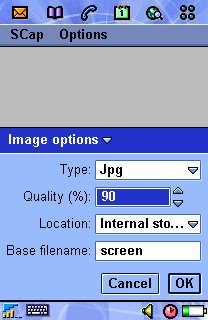
SCap for the SonyEricsson P800/P900 allows you to capture the full screen of a P800/P900 and save it to file. Start screen capture by selecting Start capture from the SCap menu, then use the hotkey to capture the screen. The images are stored in a folder called scap and you can use the P800/P900 Pictures application to view them. SCap can take screenshots in both Flip Open and Flip Closed.

Featurelist:

  • File format: Save screenshots as 24-bits bmp, 8-bits bmp, gif or jpg. For jpg you can configure the image quality (and thus the file size).
  • Location: You can configure screenshots to be stored on either the internal disk or the Memory Stick.
  • Filename: You can specify the base file name of the screenshot image files. SCap will append a unique number to the base filename. For example, the default base file name is screen and the default image type is jpg, so images are called screen.jpg, screen-1.jpg etc.
  • Hotkeys: Select Camera button, Browser button, Power button or Jog dial select as the hotkey.
  • Auto/manual stop: You can configure SCap to either automatically stop the capturing after you've taken a screenshot (and thus release the hotkey to its normal use) or to leave it on until you manually select Stop capture from the SCap menu. This is handy if you want to take several screenshots.
  • Visual feedback: If you enable visual feedback you get a small popup to say SCap is saving the image and a popup to say it is done. You can disable them which is usefull when taken screenshots of games such as EDoom or EMame as these popups will take these games out of their full screen mode.
  • Audible feedback: You may select an audio file to be played after the screen capture is fully completed. Audible and visual feedback are usefull because for example saving a screenshot as gif on the memory stick may take 10 seconds. In that period you cannot take another screenshot.