Showing posts with label FExplorer. Show all posts

Monday, October 16, 2006

How to Recover a password from a MMC card on your Mobile


1 Open any file manager softwares like Seleq, FExplorer.
DOWNLOAD SELEQ FROM THIS POST

2 (Search phone memory only)search for the file MMCSTORE in phonememory using seleq software’s inbuilt search or search manually in folders either C:/SYSTEM/DATA or C:/SYSTEM/
Search by giving the search item as mmcstore.* or mmcstore.dat (better manually locate)(Seleq represents phone memory as c drive and mmc as E drive)

3 when you find it, send it to your PC by using send option in seleq.

4 on PC, open the file with Notepad, or any word processor

5 There goes your password.Ignore spaces and any unidentificable unknown (non english) charecters.

You can only recover the password of the MMC card set on your phone. If the password for the card was set on another phone you would have to apply the above procedure on the phone which originally set the MMC password. That is to say you can't insert the MMC card into another phone and search the phonememory for the password there.

Wednesday, August 30, 2006

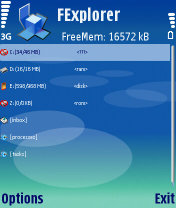
FExplorer - ported to Series 60 3rd Edition


First screenshot of FExplorer running on Series 60 3rd edition on N80 but the creator Dominique Hugo needs your help to iron out some bugs related to security and certificate issues.

"I have some troubles with the security, certificate, FE installs fine on the device but I get a security message when I run it !, if someone can give me some help, this will be very appreciated !!"

Calling all Symbian S60 3rd Edition gurus to give Dominique some tips on solving his bugs, after all he has delivered a great product to us all.

Friday, July 14, 2006

File Explorer Tricks for Series60 phones


* How to reset the operator logo :

1) go to the following dir :

c:\system\apps\phone\oplogo

1) delete any file in this directory

3) restart the phone

* to make a screenshot on a Nokia 3650, 6600 :

1) use the pencil key + '0'
2) the screenshot is saved in C:\NOKIA\IMAGES\FE_img\

* to make a screenshot on a SX1 :

1) use the shift key + '0'
2) the screenshot is saved in C:\NOKIA\IMAGES\FE_img\

* remember, there are some shortcuts :

: copy
: show path (scroll with joystick left/right)
: PageUp
: cut
:
*not yet used*
: top of the list
: paste
:
*not yet used*
: PageDown
: Mark / Unmark a file
: go to root
: file properties
: delete a file

* running exe files :

With version 1.13,in the directory of FExplorer a console exe file : EXETEST.EXE (you can run it), the purpose is only to test if FExplorer can run EXE files on your phone.

* restoring the last path in views :

After leaving the 'about box', 'settings' or the 'editor' view, if FExplorer return to the root directory, check that the 'save last path' in the settings is 'ON', not only this settings is used when leaving FExplorer but i's also used in all the differents 'views' (06/03/2005).

* how to switch between the text/hex viewer :

Simply, go to the settings and choose the viewer type : text or hex (06/05/2005).